
SITE GUIDE
STructure
Collections
Index - A collection of pages that act as sections on an Index page.
Blog - A collection of blog posts. Each post is a page. The blog page is like an Index or table of contents for the posts.
Folder - when used for the nav, the folder will appear as a main nav item. Can contain pages or links (ie. to not-linked pages)
Client Logos Gallery Page- not to be confused with a gallery block on a page. Any additions or updates you make to this page will be automatically occur in any instance that uses this page (Homepage and About).
Linked / Not linked
Linked - visibly appears as part of the site’s main navigation
Not Linked - is still be publicly-accessible, visible, and linkable, just not visible in the main nav. Shows up in search results.
Naming conventions
(important!)
A system for naming helps keep things organized, easy to understand, easy to identify for when adding or replacing images or linking pages. It can effect SEO. Mirror the visible organization and hierarchy of your site. Use plain language that anyone can understand, separating words with a hyphen not an underscore. Only use letters, numbers, hyphens. No special characters or accented letters.
Pages
Naming pages and url slugs.
Examples:
Homepage-Featured-Work
Commercial-Honda
Film-Feature-FilmTitle
Video & Images
File naming and alt image text.
Examples:
Photography-Kate-Spade-Ive-Got-You-Babe
Client-Logo-Byrdie

Creating video pages for lightboxes
SINGLE VIDEO
1) Create page and add video block
2) Add CAPTION, keeping the styles as shown.
3) Desktop Auto-play (if you don’t need this, ignore below)
A. vimeo
FOR VIDEOS WITH A SINGLE ID NUMBER:
Add a video block
If auto-play is desired, click the embed icon “<>”
Copy the iframe code below
Change “VIDEOID” with your video’s URL ID number (you can usually just double click on the ID to select it more easily)
Example: https://vimeo.com/151710351
<iframe src="https://player.vimeo.com/video/VIDEOID?autoplay=1;autopause=0 width="640" height=“480" frameborder="0" allow="autoplay; fullscreen" allowfullscreen</iframe>
would become
<iframe src="https://player.vimeo.com/video/151710351?autoplay=1;autopause=0 width="640" height=“480" frameborder="0" allow="autoplay; fullscreen" allowfullscreen</iframe>
FOR VIDEOS WITH TWO ID NUMBERS:
Example: https://vimeo.com/330518983/eafe0a5abc
<iframe src="https://player.vimeo.com/video/VIDEOID1?h=VIDEOID2&autoplay=1&loop=0&autopause=0 width="640" height=“360” frameborder="0" allow="autoplay; fullscreen" allowfullscreen</iframe>
<iframe src="https://player.vimeo.com/video/330518983?h=eafe0a5abc&autoplay=1&loop=0&autopause=0 width="640" height=“360” frameborder="0" allow="autoplay; fullscreen" allowfullscreen</iframe>
B. For youtube:
<iframe src=“https://www.youtube.com/embed/VIDEOIDHERE?autoplay=1&loop=0&autopause=0&controls=1 width="640" height=“360” frameborder="0" allow="autoplay; fullscreen" allowfullscreen</iframe>
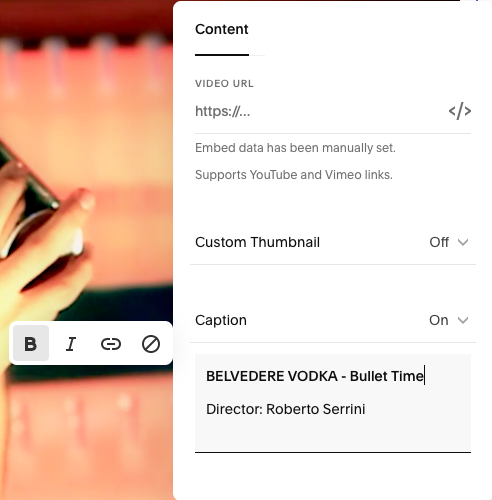
1. Video Block > Content > Caption
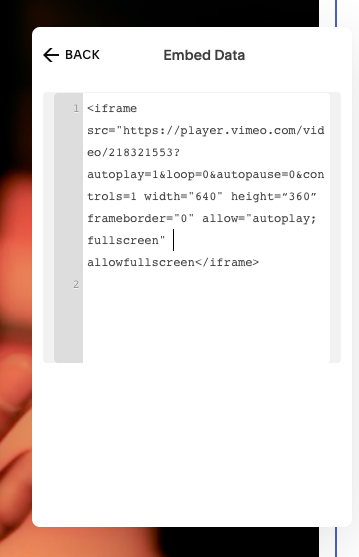
Video Block > Embed “<>”
MULTI-VIDEO LIGHTBOX PAGE
Add Gallery > Design > Slideshow
Add videos using urls as is
Add caption text as styled below:
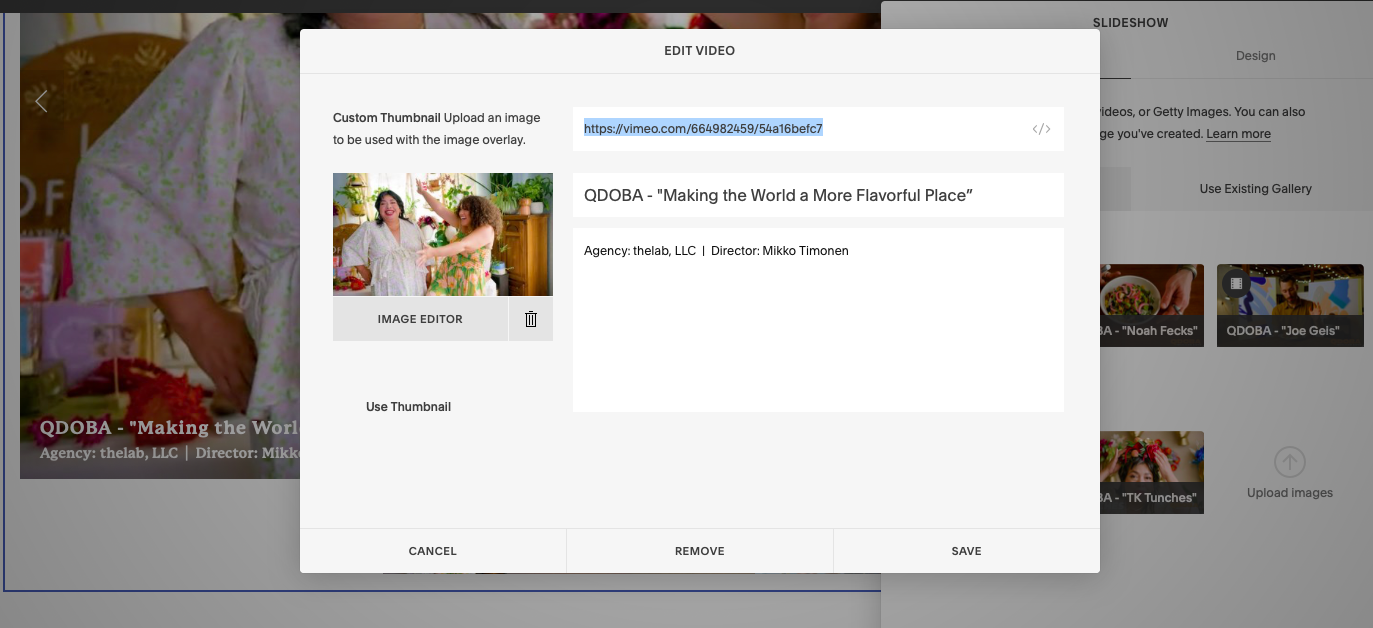
Adding link for light boxes
1 Add gallery block to blank page
2 Add images
A Upload optimized images, or
B Search in your site’s library. Useful when the same project is featured in more than one area. With the new naming convention, you can type the keyword to find an image easily.
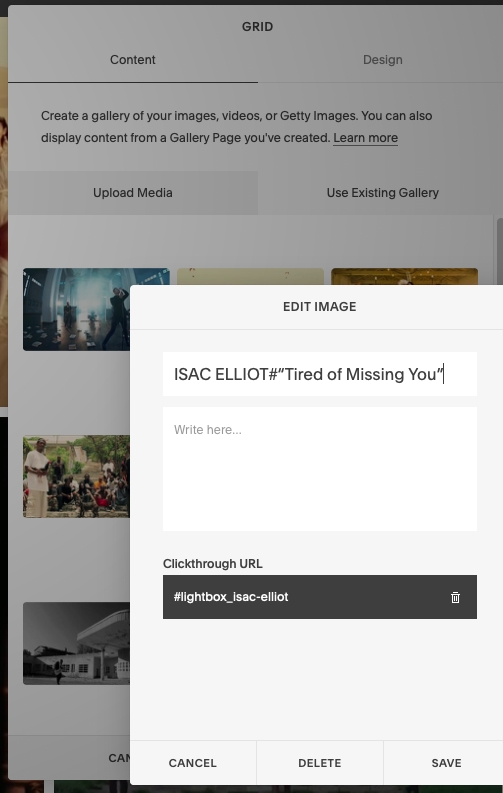
3 Edit Image
A. Copy the page’s url slug and add to the following format:
#lightbox_pageurlslug
Paste this into the Clickthrough URL field.
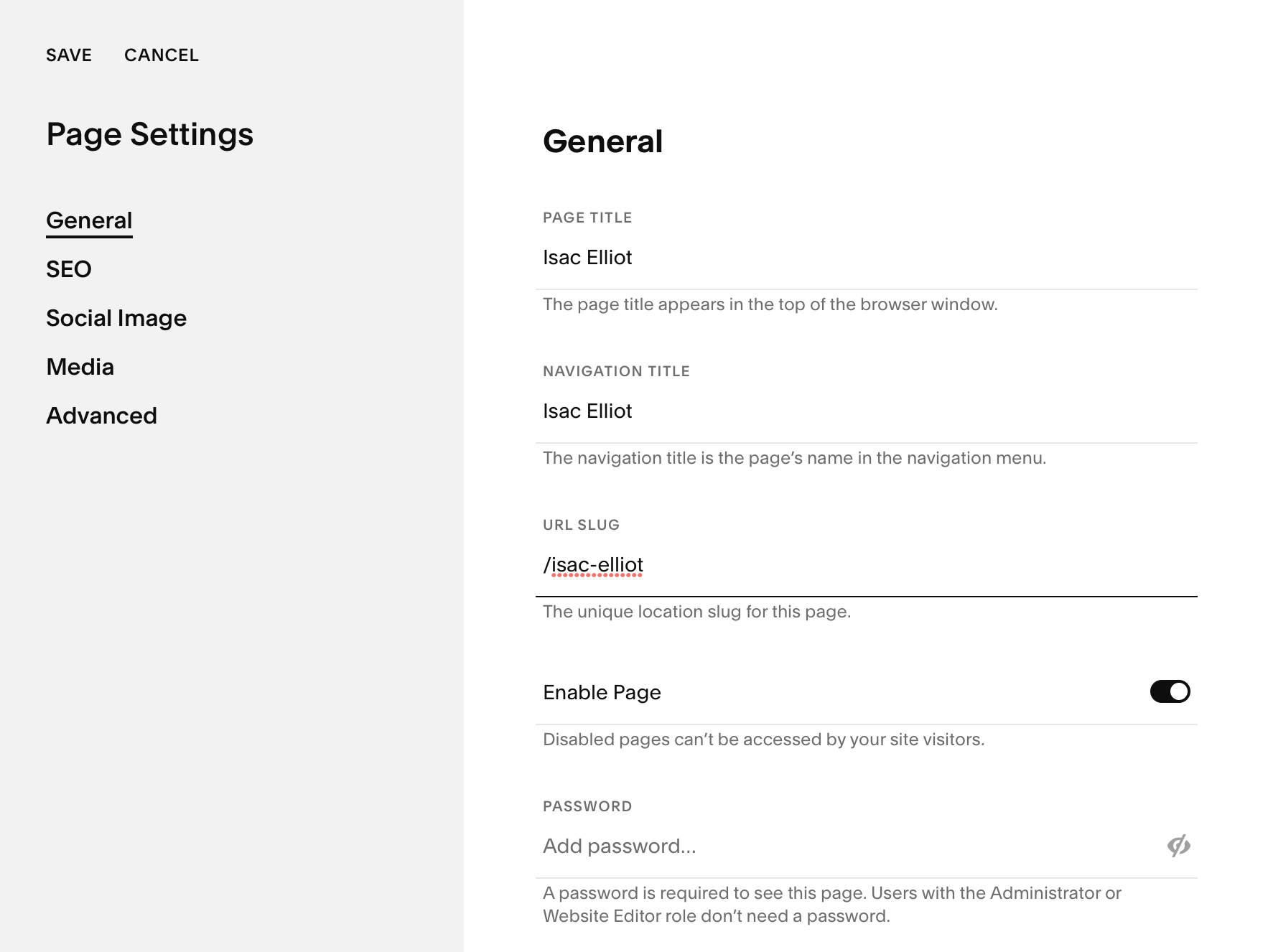
URL - SLUG
B. For the thumbnail hover text, follow this style, and use “#” for manual line breaks. (this is unfortunately necessary, especially when considering mobile view)
Example:
ISAC ELLIOT#”Tired of Missing You”
Displays On Thumbnail as:
ISAC ELLIOT
“Tired of Missing You”
Edit Gallery > Image Settings Cog